More adventures in helm - more than one action

| categories: emacs | tags:

We continue our exploration of helm and now consider how to have more than one action for a selection. When you press enter, helm runs the default action defined, but you can define more than one action, and choose which one to run. How do you know if there are multiple actions? Press C-z in helm and you will get a new helm buffer showing the actions. The first action is the default, and you can select the the actions with function keys, e.g. f1 is the first action, f2 is the second action, or you can select the action and press enter.

The main difference in setting up multiple actions is that instead of a single function for action in the source definition, we provide a list of cons cells for the action element of the helm source. Each action cons cell should have a descriptive string as the car that identifies the action. This will be shown in the helm buffer. The cdr should be the function to run on the candidate. The function will be called with the selection, so the function must take one argument.

Here is an example where we have two actions. The default action will just show us the email address of the selected candidates in a message box. It will show as a list. The second action opens an email window and inserts the selected candidates in the To: field as a comma separated list. I use helm-selected-candidates in these functions instead of the just the current selected candidate so we can have multiple selections. I define the first function as a lambda function, and the second one as a defun to illustrate how to use both approaches. You can have as many actions as you want, so you could consider functions that open notes about the person, or open your contacts to look up a phone number, or functions with template emails you send often, etc…

Now, you have these options to run those actions.

  1. Make a selection and press enter. That runs the first (and default) action to show you a message box.
  2. Make a selection and press C-z to see what actions are available. Select the action you want, and press enter.
  3. Make a selection and press F1 to run the default action, or F2 to run the second action.

Here is our code.

(setq data '(("John" . "john@email.com")
             ("Jim" . "jim@email.com")
             ("Jane" . "jane@email.com")
             ("Jill" . "jill@email.com")))


(defun open-email (candidates)
  "Compose an email to the candidates. Fill in the addresses and
move point to the subject."
  (compose-mail)
  (message-goto-to)
  (insert
   (mapconcat
    'identity
    (helm-marked-candidates)
    ","))
  (message-goto-subject))

(setq some-helm-source
      `((name . "HELM at the Emacs")
        (candidates . ,data)
        (action . (("show email address" . (lambda (candidate)
                                             (message-box
                                              "selected: %s"
                                              (helm-marked-candidates))))
                   ("send email" . open-email)))))

(helm :sources '(some-helm-source))
t

Now, you can define multiple actions for your selection in helm!

Copyright (C) 2015 by John Kitchin. See the License for information about copying.

org-mode source

Org-mode version = 8.2.10

Discuss on Twitter

Export org-mode to docx with citations via pandoc

| categories: orgmode, docx | tags:

Pandoc continues to develop, and since the last time I wrote about it there is improved support for citations. We will use that to convert org documents to Word documents that actually have citations and a bibliography in them. This post explores using helm-bibtex to insert pandoc compatible citations, and then using pandoc to convert the org file to a word document (docx). We can define the format of citations that helm-bibtex inserts in a function, and tell helm-bibtex to use it when in org mode.

Here is that code. This is just to give me a convenient tool to insert citations with searching in my bibtex file. I think you could just as easily use reftex for this, or an ido-completing function on bibtex keys. See Pandoc - Pandoc User’s Guide for directions on citation format. The key is to format the cite links to the pandoc format.

(defun helm-bibtex-format-pandoc-citation (keys)
  (concat "[" (mapconcat (lambda (key) (concat "@" key)) keys "; ") "]"))

;; inform helm-bibtex how to format the citation in org-mode
(setf (cdr (assoc 'org-mode helm-bibtex-format-citation-functions))
  'helm-bibtex-format-pandoc-citation)
helm-bibtex-format-pandoc-citation

Now, we can cite the org-mode book [@dominik-2010-org-mode], and some interesting papers on using org-mode [@schulte-2011-activ-docum; @schulte-2012-multi-languag]. You could pretty easily add pre and post text manually to these, after selecting and inserting them.

We need a bibliography file for pandoc to work. I will use a bibtex file, since I already have it and am using helm-bibtex to select keys. I found pandoc could not read my massive bibtex file, perhaps it does not support all the types yet, so I made a special small bibtex file for this. So, now all we need to do is convert this file to a docx. I use a function like this to do that. It uses an org-ref function to get the bibliography defined in this file, derives some file names, and then runs pandoc.

(defun ox-export-to-docx-and-open ()
 "Export the current org file as a docx via markdown."
 (interactive)
 (let* ((bibfile (expand-file-name (car (org-ref-find-bibliography))))
        ;; this is probably a full path
        (current-file (buffer-file-name))
        (basename (file-name-sans-extension current-file))
        (docx-file (concat basename ".docx")))
   (save-buffer)
   (when (file-exists-p docx-file) (delete-file docx-file))
   (shell-command (format
                   "pandoc -s -S --bibliography=%s %s -o %s"
                   bibfile current-file docx-file))
   (org-open-file docx-file '(16))))

And now we run it to get our docx.

(ox-export-to-docx-and-open)

Here is the result: org-to-docx-pandoc.docx

It is not too bad. Not all the equations showed up below, and the figure did not appear for some reason. But, the citations went through fine. A downside of this is the citation links are not clickable (but see Making pandoc links for a way to do this), so they lack all the awesome features that org-ref gives them. Maybe pandoc can convert these to LaTeX links, but we already have such a good framework for that I do not see why you would want to do it. A better option is to figure out how to export the org file to an org file, and transform the org citation links to pandoc citations, then use pandoc on the temporarily transformed buffer. That way, you keep the cite links and their functionality, and ability to export to many formats, and get export to docx via pandoc.

There are other options in pandoc to fine tune the reference format (you need a csl file). That can be included in the org-file via file tags pretty easily. These citations are not links in the word document, and it does not look like they can be converted to footnotes, endnotes or interact with Endnote or Zotero at this time, but it is a step forward in getting a passable word document with references out of org-mode!

Since we are testing, let us try it some other typical features in an org-file.

1 Numbered list

  1. Item 1
  2. Item 2
  3. Item 3

2 Bulleted list

  • item 1
  • item 2
  • item 3
    • subitem

3 definitions

org-mode
tool for awesomeness

4 Math

One equation: \(e^{i\pi} - 1 = 0\)

A second equation:

\begin{equation}
e^{i\pi} - 1 = 0
\end{equation}

5 An image

Figure 1: A little icon.

6 A table

Table 1: A little table.
x y
1 2
3 4

a plain table

x y
1 2
3 4

7 Making pandoc links

Here I show a way to get clickable text on pandoc links. I found a nice library called button-lock that uses a regular expression to attach text properties to matching text.

Below I repeat the citations so it is easy to see the effect after running the code block. Indeed, you get clickable text, even org-ref like capability. I think you could even add the idle-timer messages, and the org-ref menu.

Now, we can cite the org-mode book [@dominik-2010-org-mode], and some interesting papers on using org-mode [@schulte-2011-activ-docum; @schulte-2012-multi-languag]. You could pretty easily add pre and post text manually to these, after selecting and inserting them.

You would need to make this code run in when you open an org-file to get it to work every time.

(require 'button-lock)
(global-button-lock-mode)

(button-lock-set-button
 "@\\([-a-zA-Z0-9_:]*\\)"
 (lambda ()
   (interactive)
   (re-search-backward "@")
   (re-search-forward  "@\\([-a-zA-Z0-9_:]*\\)")
   (let* ((key (match-string-no-properties 1))
          (bibfile (cdr (org-ref-get-bibtex-key-and-file key))))
     (if bibfile
        (save-excursion
          (with-temp-buffer
            (insert-file-contents bibfile)
            (bibtex-search-entry key)
            (message (org-ref-bib-citation))))
       (message "No entry found"))))
 :face (list 'org-link))

8 References

Copyright (C) 2015 by John Kitchin. See the License for information about copying.

org-mode source

Org-mode version = 8.2.10

Discuss on Twitter

New org-mode link to Web of Science

| categories: uncategorized | tags:

For ages I have been trying to figure out how to make a link to open a search in Web of Science. Today, thanks to help from our library, I finally figured it out!

It turns out you can embed a search widget to Web of Science in a web page. See http://wokinfo.com/webtools/searchbox/ . Here is an example.

Web of Science

Search Web of Science™
   

Copyright 2014 Thomson Reuters   

This simple form just sends a GET http request to a cgi script at Web of Knowledge. Awesome, we can create a url that does just that to make an org link! We will make a link that you can click on to open the web page, and a simple formatting function to make the link work in html too when we export it.

(org-add-link-type
 "wos"
 (lambda (path)
   (browse-url
    (format  "http://gateway.webofknowledge.com/gateway/Gateway.cgi?topic=%s&GWVersion=2&SrcApp=WEB&SrcAuth=HSB&DestApp=UA&DestLinkType=GeneralSearchSummary"
             (s-join "+"
              (split-string path)))))
 ;; formatting function. Assume html
 (lambda (link desc format)
   (format "<a href=\"%s\">%s</a>"
           (format  "http://gateway.webofknowledge.com/gateway/Gateway.cgi?topic=%s&GWVersion=2&SrcApp=WEB&SrcAuth=HSB&DestApp=UA&DestLinkType=GeneralSearchSummary"
             (s-join "+"
              (split-string path)))
           (format "wos:%s" link)
           )))

Now, here is a link: wos:alloy segregation

When I click on it in org-mode, Web of Science opens to articles that match that search. When I export the post to html, you should also see a link that opens to Web of Science (assuming you click on it from an IP address with access).

The link may not seem all that useful, but we can use the idea to highlight words, and send them to a web of science query, e.g. https://github.com/jkitchin/jmax/blob/master/words.el#L63 , or in org-ref to query web of science for the words you typed into helm-bibtex that do not match any references in your database. One more powerful tool in doing research for a living!

Copyright (C) 2015 by John Kitchin. See the License for information about copying.

org-mode source

Org-mode version = 8.2.10

Discuss on Twitter

Anatomy of a helm source

| categories: helm, emacs | tags:

I have been integrating helm into my emacs work flows almost anywhere I need to make interactive selections and do something with them. In this post, I will go through the simplest helm examples I can think of that get you to writing your own example.

To run a helm selection process you basically just call a function that calls this minimal function:

(helm :sources '(some-helm-source))

In that code, the symbol some-helm-source will provide the input for the helm buffer. Let us look at the simplest example here. Each source should have a name, a list of candidates, and an action that works on the selected candidate. We construct a source as a list of cons cells. Here, we make a source with the name "HELM at the Emacs", a static list of candidates, which are simply a list of numbers, and a single action that will operate on the selected candidate.

If you run this block, you will get a helm buffer, you can select an entry, press enter, and you should see a message box pop up telling you what entry you selected. I like to separate the source definition from the helm call like this, but only for readability.

(setq some-helm-source
      '((name . "HELM at the Emacs")
        (candidates . (1 2 3 4))
        (action . (lambda (candidate)
                    (message-box "%s" candidate)))))

(helm :sources '(some-helm-source))
3

Not bad, but what if we want some dynamic candidates? The usual way we will do that is to define a function that calculates the candidates for us. Let us work out an example that just shows us random numbers between 0 and 10 to select from. In a real example, you would use this function to generate a list of candidates like bibtex keys, email-addresses, etc…

(defun random-candidates ()
  "Return a list of 4 random numbers from 0 to 10"
  (loop for i below 4 collect (random 10)))

(setq some-helm-source
      '((name . "HELM at the Emacs")
        (candidates . random-candidates)
        (action . (lambda (candidate)
                    (message "%s" candidate)))))

(helm :sources '(some-helm-source))

So far, we have looked at the simplest list of candidates: a simple list. It may be that this is not the most convenient way to see the candidates. We might like to have one set of candidates that we use for searching, but another set of equivalent candidates used for the action. For example, we might want a list of names for selecting, but then have the action work on the corresponding email address. Let us consider a case where we have a list of cons cells of names and email addresses.

We use the `, way to create the source variable to make sure our list of candidates is constructed. Then, in our function we take the selection and get the corresponding entry in the data a-list.

(setq data '(("John" . "john@email.com")
             ("Jim" . "jim@email.com")
             ("Jane" . "jane@email.com")
             ("Jill" . "jill@email.com")))

(setq some-helm-source
      `((name . "HELM at the Emacs")
        (candidates . ,(mapcar 'car data))
        (action . (lambda (candidate)
                    (message "%s" (cdr (assoc candidate data)))))))

(helm :sources '(some-helm-source))
jim@email.com

That is not too bad, and might be a general way to get to the data you want. But, helm can integrate this directly by using the a-list directly as the list of candidates. Helm will show you the car of each cell, but return the cdr of the selected entry.

Let us try this to make a function that will give us a helm buffer to select some names from, and then insert a comma separated list of emails from our selection at the point. We make our action function just return the list of marked candidates. Then we create a function that calls helm, and inserts a concatenated string.

(setq data '(("John" . "john@email.com")
             ("Jim" . "jim@email.com")
             ("Jane" . "jane@email.com")
             ("Jill" . "jill@email.com")))

(setq some-helm-source
      `((name . "HELM at the Emacs")
        (candidates . ,data)
        (action . (lambda (candidate)
                    (helm-marked-candidates)))))

(defun helm-select-and-insert-emails ()
  (interactive)
  (insert
   (mapconcat 'identity
              (helm :sources '(some-helm-source))
              ",")))
helm-select-and-insert-emails

Here is what I get when I run the command, select John and Jill, and press enter: john@email.com,jill@email.com

That is it for this post. We looked at:

  1. the simplest kind of helm interface with a fixed set of candidates
  2. A simple dynamic set of candidates
  3. A simple fixed set of candidates from a list of cons cells.

This barely scratches the surface of helm, but is already enough to do some useful things.

Copyright (C) 2015 by John Kitchin. See the License for information about copying.

org-mode source

Org-mode version = 8.2.10

Discuss on Twitter

Equation of a plane through three points

| categories: python | tags:

We are given three points, and we seek the equation of the plane that goes through them. The method is straight forward. A plane is defined by the equation:

\(a x + b y + c z = d\)

and we just need the coefficients. The \(a, b, c\) coefficients are obtained from a vector normal to the plane, and \(d\) is calculated separately. We get the normal vector from the cross-product of two vectors connecting the points, and we get \(d\) from the dot product of the normal vector with any one of the point position vectors.

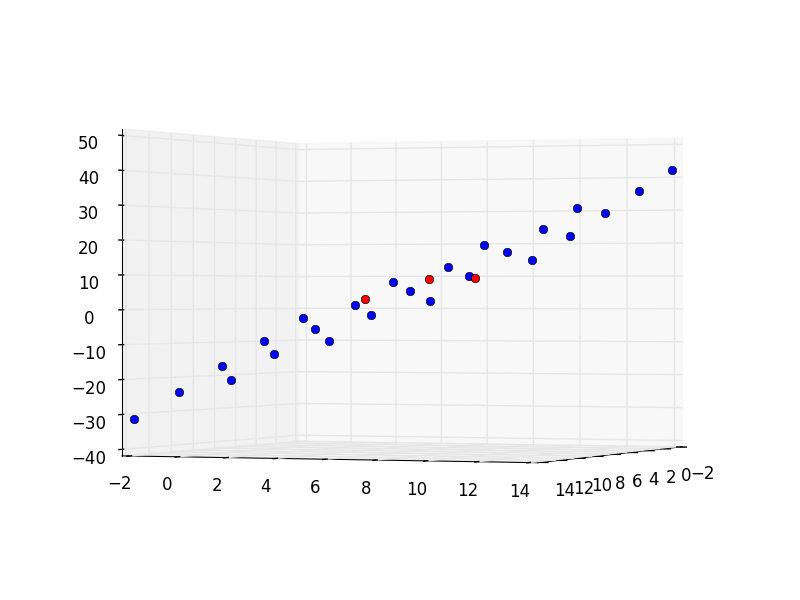
Finally, given the equation, we want to generate a mesh that samples the plane, and plot the mesh and original points to verify the plane goes through the points. Here is the implementation.

import numpy as np

p1 = np.array([1, 2, 3])
p2 = np.array([4, 6, 9])
p3 = np.array([12, 11, 9])

# These two vectors are in the plane
v1 = p3 - p1
v2 = p2 - p1

# the cross product is a vector normal to the plane
cp = np.cross(v1, v2)
a, b, c = cp

# This evaluates a * x3 + b * y3 + c * z3 which equals d
d = np.dot(cp, p3)

print('The equation is {0}x + {1}y + {2}z = {3}'.format(a, b, c, d))

import matplotlib.pyplot as plt
from mpl_toolkits.mplot3d import Axes3D
fig = plt.figure()
ax = fig.add_subplot(111, projection='3d')

x = np.linspace(-2, 14, 5)
y = np.linspace(-2, 14, 5)
X, Y = np.meshgrid(x, y)

Z = (d - a * X - b * Y) / c

# plot the mesh. Each array is 2D, so we flatten them to 1D arrays
ax.plot(X.flatten(),
        Y.flatten(),
        Z.flatten(), 'bo ')

# plot the original points. We use zip to get 1D lists of x, y and z
# coordinates.
ax.plot(*zip(p1, p2, p3), color='r', linestyle=' ', marker='o')

# adjust the view so we can see the point/plane alignment
ax.view_init(0, 22)
plt.tight_layout()
plt.savefig('images/plane.png')
plt.show()
The equation is 30x + -48y + 17z = -15

It looks like the blue points form a plane that contains the red points.

Copyright (C) 2015 by John Kitchin. See the License for information about copying.

org-mode source

Org-mode version = 8.2.10

Discuss on Twitter
« Previous Page -- Next Page »