Keybinding Note: This extension uses Emacs-style keybindings where Ctrl is used on all platforms (not Cmd on Mac), except where explicitly noted. Mac alternatives are shown as Cmd where applicable.
✅ Introduction
Image overlays provide inline image display functionality in org-mode files, similar to Emacs org-mode's image display feature. When enabled, image links are rendered as thumbnails directly in the editor, allowing you to preview images without opening them separately.
This feature enhances the visual experience of working with org documents that contain images, such as:
Scientific notebooks with plots and diagrams
Documentation with screenshots and illustrations
Journal entries with photos
Results from source block executions (especially Jupyter)
✅ How Image Overlays Work
Due to VS Code's limitations compared to Emacs overlays, the extension uses Hover Previews - Full-size image preview when hovering over image links
Thumbnails are automatically generated and cached for performance, using ImageMagick or native macOS tools when available.
✅ Supported Image Formats
The image overlay system supports the following image formats:
| Format | Extension(s) | Notes |
|---|---|---|
| PNG | .png | Fully supported |
| JPEG | .jpg, .jpeg | Fully supported |
| GIF | .gif | Fully supported (static frames) |
| SVG | .svg | Scalable vector graphics |
| WebP | .webp | Modern web format |
| BMP | .bmp | Bitmap images |
| TIFF | .tiff, .tif | Tagged image format |
| ICO | .ico | Icon files |
✅ Image Link Syntax
✅ Basic Image Links
The simplest way to include an image is with a basic link:
[[./_static/logo.svg]]This displays the image inline and can be clicked to open.
✅ File Protocol Links
You can explicitly use the file: protocol:
[[file:./_static/logo.svg]]Both formats work identically - the file: prefix is optional for local files.
✅ Links with Descriptions
Add descriptive text that appears as a clickable link:
[[./_static/logo.svg][My beautiful diagram]]
[[file:./_static/logo.svg][Demo Screenshot]]
The description text is shown in the editor, while the image overlay appears in the gutter or inline.
✅ Absolute vs Relative Paths
Both absolute and relative paths are supported:
# Relative to current file
[[./_static/logo.svg]]


# Absolute paths
[[file:/Users/jkitchin/Dropbox/projects/scimax_vscode/docs/_static/logo.svg]]
[[file:~/Dropbox/projects/scimax_vscode/docs/_static/logo.svg]]
The ~ (tilde) is expanded to the home directory on Unix-like systems.
✅ Remote Images
Remote image URLs are not displayed as overlays but are still valid links:

These links work for navigation but won't show thumbnails in the editor.
✅ Image Sizing and Attributes
✅ ATTR_ORG Keyword
Control how images are displayed using the #+ATTR_ORG: keyword above the image link:
#+ATTR_ORG: :width 400
[[_static/logo.svg]]
Note: Currently, the #+ATTR_ORG: keyword is parsed but the :width and :height attributes primarily affect export output rather than the overlay display size. The overlay thumbnail size is controlled by the configuration settings.
✅ Supported Attributes
| Attribute | Purpose | Example |
|---|---|---|
| :width | Image width (export) | :width 400 |
| :height | Image height (export) | :height 300 |
| :scale | Scale factor (export) | :scale 0.5 |
| :align | Alignment (export) | :align center |
| :alt | Alt text (export) | :alt "Description" |
✅ Export-Specific Attributes
For LaTeX and HTML export, use backend-specific attributes:

See Export Documentation for more details on export attributes.
✅ Adding Captions
Add captions that appear in exports:
✅ Enabling and Disabling Image Display
✅ Global Toggle
Toggle image overlays for all org files:
Command: Scimax: Toggle Image Overlays
Command ID: cmd:scimax.imageOverlays.toggle
✅ Per-File Toggle
Toggle image overlays for the current file only:
Command: Scimax: Toggle Image Overlays for Current File
Command ID: scimax.imageOverlays.toggleCurrentFile
This is useful when you want overlays disabled for one specific large document but enabled globally.
✅ Via Configuration
Permanently enable or disable in your settings.json:
{
  "scimax.imageOverlays.enabled": true
}
Set to false to disable by default.
✅ Configuration Settings
✅ scimax.imageOverlays.enabled
Type: boolean Default: true
Enable or disable inline image thumbnails globally.
{
  "scimax.imageOverlays.enabled": true
}
✅ scimax.imageOverlays.maxWidth
Type: number Default: 96
Maximum width in pixels for thumbnail icons. Thumbnails are scaled down to fit within these dimensions while maintaining aspect ratio.
{
  "scimax.imageOverlays.maxWidth": 128
}
✅ scimax.imageOverlays.maxHeight
Type: number Default: 96
Maximum height in pixels for thumbnail icons.
{
  "scimax.imageOverlays.maxHeight": 128
}
✅ scimax.imageOverlays.renderMode
Type: string (enum) Default: "gutter" Options: gutter, after, both
Controls where image thumbnails are displayed:
gutter - Show thumbnail in the editor gutter (line margin) - recommended
after - Show emoji and dimensions inline after the link text
both - Show both gutter thumbnail and inline decoration
{
  "scimax.imageOverlays.renderMode": "gutter"
}
Recommendations:
Use gutter for a clean, unobtrusive experience
Use after if you prefer inline indicators
Use both for maximum visibility
✅ scimax.imageOverlays.onlyWhenCursorNotInLink
Type: boolean Default: true
Hide the overlay when your cursor is inside the image link. This prevents the thumbnail from obscuring the link text you're editing.
{
  "scimax.imageOverlays.onlyWhenCursorNotInLink": true
}
Set to false to always show overlays, even when editing.
✅ scimax.imageOverlays.excludePatterns
Type: array of strings Default: [ ]
Regex patterns for image paths to exclude from overlay display. Useful for hiding certain directories or file patterns.
{
  "scimax.imageOverlays.excludePatterns": [
    "\\.tmp/",
    "/archive/",
    "draft-.*\\.png"
  ]
}
Examples:
"\\.tmp/" - Exclude images in .tmp directories
"^http" - Exclude remote URLs (already excluded by default)
"screenshot-.*" - Exclude files starting with "screenshot-"
✅ scimax.imageOverlays.maxOverlaysPerDocument
Type: number Default: 200
Maximum number of image overlays to display per document. This prevents performance issues in documents with hundreds of images.
{
  "scimax.imageOverlays.maxOverlaysPerDocument": 500
}
If your document exceeds this limit, you'll see a warning message.
✅ scimax.imageOverlays.showDimensions
Type: boolean Default: true
When using after or both render modes, show image dimensions (e.g., "800x600") in the inline decoration.
{
  "scimax.imageOverlays.showDimensions": true
}
✅ scimax.imageOverlays.cacheEnabled
Type: boolean Default: true
Enable thumbnail caching for faster loading. Thumbnails are stored in the extension's global storage directory.
{
  "scimax.imageOverlays.cacheEnabled": true
}
Set to false to disable caching (may impact performance).
✅ Images from Source Block Results
✅ Jupyter Kernel Output
Jupyter kernels automatically save image output to the .ob-jupyter/ directory:
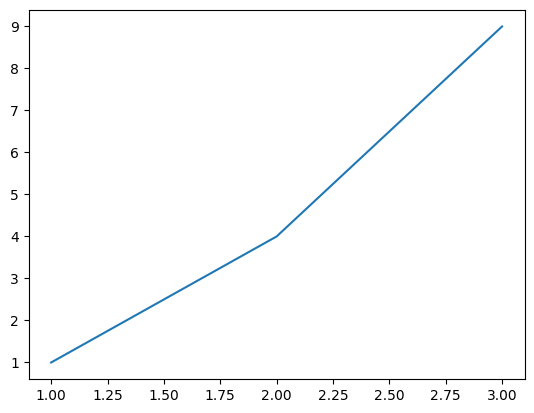
import matplotlib.pyplot as plt
import numpy as np

plt.plot([1, 2, 3, 4], [1, 4, 9, 16])
plt.show()
These images are automatically displayed as overlays when image overlays are enabled.
See Jupyter Documentation for more details on Jupyter integration.
✅ Available Commands
✅ Scimax: Toggle Image Overlays
Command ID: cmd:scimax.imageOverlays.toggle
Toggle image overlays globally for all org files. When disabled, no thumbnails are shown but links remain functional.
✅ Scimax: Toggle Image Overlays for Current File
Command ID: cmd:scimax.imageOverlays.toggleCurrentFile
Toggle image overlays for the currently active org file only. Useful for temporarily hiding overlays in specific documents.
✅ Scimax: Refresh Image Overlays
Command ID: cmd:scimax.imageOverlays.refresh
Manually refresh all image overlays in visible editors. This can be useful if:
You've modified image files externally
Overlays aren't updating correctly
You've changed configuration settings
✅ Scimax: Clear Image Overlay Cache
Command ID: cmd:scimax.imageOverlays.clearCache
Clear the thumbnail cache. This will:
Delete all cached thumbnails
Free up disk space
Force thumbnails to be regenerated on next display
Useful if thumbnails are corrupted or you want to reclaim space.
✅ Scimax: Show Image Overlay Cache Statistics
Command ID: cmd:scimax.imageOverlays.showStats
Display information about the thumbnail cache:
Number of cached thumbnails
Total cache size in KB
Useful for monitoring cache usage.
✅ Troubleshooting Image Display
✅ Images Not Showing
If image overlays aren't displaying:
Check if overlays are enabled:
Run command: Scimax: Toggle Image Overlays
Check setting: scimax.imageOverlays.enabled
Verify the image file exists:
Hover over the link to see the full path
Check for "Image not found" warning in the hover tooltip
Verify file permissions
Check the file extension:
Ensure the file has a supported image extension
Extensions are case-insensitive (.PNG works like .png)
Try refreshing:
Run command: Scimax: Refresh Image Overlays
Check exclude patterns:
Review scimax.imageOverlays.excludePatterns setting
Ensure your image path doesn't match an exclude pattern
✅ Overlays Disappear When Editing
This is normal behavior when scimax.imageOverlays.onlyWhenCursorNotInLink is true (default). The overlay hides when your cursor is inside the link to prevent obscuring the text you're editing.
To always show overlays:
{
  "scimax.imageOverlays.onlyWhenCursorNotInLink": false
}
✅ Performance Issues
If you experience slow performance:
Reduce the overlay limit: #+BEGIN_SRC json { "scimax.imageOverlays.maxOverlaysPerDocument": 100 } #+END_SRC
Reduce thumbnail size: #+BEGIN_SRC json { "scimax.imageOverlays.maxWidth": 64, "scimax.imageOverlays.maxHeight": 64 } #+END_SRC
Use gutter mode only: #+BEGIN_SRC json { "scimax.imageOverlays.renderMode": "gutter" } #+END_SRC
Disable overlays for specific files:
Use command: Scimax: Toggle Image Overlays for Current File
✅ Thumbnails Are Blurry or Corrupted
Clear the cache:
Run command: Scimax: Clear Image Overlay Cache
Check if ImageMagick is installed:
The extension uses ImageMagick (convert) or macOS sips for thumbnail generation
Install ImageMagick: brew install imagemagick (macOS) or apt install imagemagick (Linux)
Verify the original image isn't corrupted:
Open the image in an external viewer
✅ Relative Paths Not Resolving
If relative paths aren't working:
Use ./ prefix for clarity:
 # Better
# Also works, but less clear
Check your working directory:
Paths are resolved relative to the org file's directory
Use absolute paths as a workaround:

✅ Hover Preview Not Working
If hover previews aren't showing:
Check hover delay:
VS Code has a built-in hover delay setting
Try hovering for longer
Verify hover provider is active:
Hover should work for all org links, not just images
If no hovers work at all, check VS Code's language server settings
Try a different image format:
Some formats may not preview well
SVG and PNG typically work best
✅ Example Configuration
✅ Minimal Configuration
For basic image overlay functionality:
{
  "scimax.imageOverlays.enabled": true,
  "scimax.imageOverlays.renderMode": "gutter"
}
✅ Power User Configuration
For maximum visual feedback:
{
  "scimax.imageOverlays.enabled": true,
  "scimax.imageOverlays.maxWidth": 128,
  "scimax.imageOverlays.maxHeight": 128,
  "scimax.imageOverlays.renderMode": "both",
  "scimax.imageOverlays.onlyWhenCursorNotInLink": true,
  "scimax.imageOverlays.showDimensions": true,
  "scimax.imageOverlays.maxOverlaysPerDocument": 500,
  "scimax.imageOverlays.cacheEnabled": true
}
✅ Performance-Focused Configuration
For large documents with many images:
{
  "scimax.imageOverlays.enabled": true,
  "scimax.imageOverlays.maxWidth": 64,
  "scimax.imageOverlays.maxHeight": 64,
  "scimax.imageOverlays.renderMode": "gutter",
  "scimax.imageOverlays.onlyWhenCursorNotInLink": true,
  "scimax.imageOverlays.showDimensions": false,
  "scimax.imageOverlays.maxOverlaysPerDocument": 100,
  "scimax.imageOverlays.cacheEnabled": true,
  "scimax.imageOverlays.excludePatterns": ["archive/", "\\.tmp/"]
}
✅ Complete Example
Here's a complete example showing various image link formats:
,* My Research Notes

,** Experimental Results

The experiment produced the following results:

,#+CAPTION: Sine wave plot
,#+NAME: fig:sine
,#+ATTR_ORG: :width 400
[[file:./plots/sine-wave.png]]

As shown in Figure [[fig:sine]], the sine wave exhibits periodic behavior.

,** Data Visualization

,#+BEGIN_SRC jupyter-python :session analysis
import matplotlib.pyplot as plt
import numpy as np

x = np.linspace(0, 2*np.pi, 100)
y = np.sin(x)

plt.figure(figsize=(10, 6))
plt.plot(x, y)
plt.title('Sine Wave')
plt.xlabel('x')
plt.ylabel('sin(x)')
plt.grid(True)
plt.show()
,#+END_SRC

,#+RESULTS:
[[file:.ob-jupyter/output-1705171200000-0.png]]

,** Screenshots

Here are some screenshots from the application:

[[./screenshots/main-window.png][Main Window]]
[[./screenshots/settings-dialog.png][Settings Dialog]]
[[./screenshots/export-preview.png][Export Preview]]

,** External Resources

Note: Remote images don't show overlays but are clickable:

[[https://example.com/logo.png][Company Logo]]
✅ Inserting Screenshots
The extension provides a cross-platform screenshot command that captures a screen region and inserts a link to the saved image.
✅ Taking a Screenshot
Press F10 in an org or markdown file to take a screenshot:
Press
F10- the screen capture tool activatesSelect the area you want to capture (or press Escape to cancel)
The screenshot is saved to a
screenshots/directory next to your fileAn image link is automatically inserted at the cursor position
| Platform | Tool Used |
|---|---|
| macOS | screencapture (built-in) |
| Windows | SnippingTool via PowerShell |
| Linux | Auto-detects: gnome-screenshot, scrot, flameshot, or maim |
✅ macOS Permission Setup
The first time you use the screenshot command on macOS, you may need to grant screen recording permission to VS Code:
Press
F10to trigger the screenshotmacOS will show a permission dialog or the capture will fail silently
Go to System Settings > Privacy & Security > Screen Recording
Enable the checkbox for Visual Studio Code
Restart VS Code for the permission to take effect
Try
F10again
✅ Inserted Link Format
For org-mode files, the inserted link includes a width attribute:
#+attr_org: :width 800
[[./screenshots/screenshot-2026-01-23-14-30-45.png]]
For markdown files:
The width is automatically determined from the image dimensions (capped at 800 pixels).
✅ Screenshot Directory
Screenshots are saved to a screenshots/ subdirectory relative to the current file. The directory is created automatically if it doesn't exist.
Filenames follow the pattern: screenshot-YYYY-MM-DD-HH-MM-SS.png
✅ Linux Screenshot Tools
On Linux, the extension tries these tools in order and uses the first one found:
gnome-screenshot -a(GNOME desktop)scrot -s(lightweight, widely available)flameshot gui(feature-rich, popular choice)maim -s(modern alternative to scrot)import(ImageMagick, works everywhere)
Install at least one of these tools for screenshot functionality.
✅ Command Reference
| Command | Keybinding | Description |
|---|---|---|
| scimax.insertScreenshot | F10 | Capture screen region and insert link |
✅ See Also
Links - General link syntax and functionality
Source Blocks - Executing code that generates images
Jupyter Integration - Working with Jupyter kernels
Export - Exporting documents with images
Configuration - Full configuration reference
✅ Technical Details
✅ Thumbnail Generation
Thumbnails are generated using:
ImageMagick (convert command) - Preferred, works on all platforms
macOS sips - Native macOS tool, used as fallback on Mac
Direct copy - If no tools available, original images are used
Thumbnails are cached in the extension's global storage directory with filenames based on:
MD5 hash of the original image path
Configured thumbnail dimensions
Original file extension
✅ Cache Location
Thumbnails are stored in:
Linux: ~.config/Code/User/globalStorage/scimax-vscode/image-overlay-cache
macOS: ~Library/Application Support/Code/User/globalStorage/scimax-vscode/image-overlay-cache
Windows: %APPDATA%\Code\User\globalStorage\scimax-vscode\image-overlay-cache\
✅ Performance Considerations
Thumbnail generation is asynchronous and doesn't block the editor
The cache prevents regenerating thumbnails on each file open
The maxOverlaysPerDocument setting prevents memory issues with large documents
Overlays are debounced during typing to avoid excessive updates
Gutter mode is more performant than after/both modes
✅ VS Code Limitations
Unlike Emacs, VS Code cannot:
Display arbitrary-sized inline images in the editor
Replace link text with actual image content
Provide true "overlay" functionality at the text level
The implementation uses VS Code's decoration API with gutter icons as the closest approximation to Emacs overlays.