Capturing stderr and exceptions from python in org-mode

| categories: org-mode | tags:

I have used org-mode extensively to create examples of using python using the code blocks. For example to illustrate the difference between integer and float division you can do this:

print 1 / 3
print 1.0 / 3.0
0
0.333333333333

There are some limitations to showing output though. For example, the code blocks do not capture anything from stderr.

import sys

print >>sys.stderr, 'message to stderr'

And exceptions result in no output whatsoever. That is not helpful if you are trying to teach about exceptions!

I discovered a way around this. The key is using a python sandbox that redirects stdout, stderr and that captures anything sent to those channels. You can also capture any exceptions, and redirect them to a variable. Finally, you can construct the output anyway you see fit.

Below is the code that runs python code in a sandbox, with redirected outputs. I defined a function that temporarily redirects the output to stdout and stderr, so they can be captured. I execute the code wrapped in a try/except block to capture any exceptions that occur. Finally, I construct a string formatted in a way that lets you know what was on stdout, stderr, and what was an exception.

#!/usr/bin/env python
from cStringIO import StringIO
import os, sys

def Sandbox(code):
    '''Given code as a string, execute it in a sandboxed python environment

    return the output, stderr, and any exception code
    '''
    old_stdout = sys.stdout
    old_stderr = sys.stderr
    redirected_output = sys.stdout = StringIO()
    redirected_error = sys.stderr = StringIO()

    ns_globals = {}
    ns_locals = {}
    out, err, exc = None, None, None

    try:
        exec(code, ns_globals, ns_locals)
    except:
        import traceback
        exc = traceback.format_exc()

    out = redirected_output.getvalue()
    err = redirected_error.getvalue()

    # reset outputs to the original values
    sys.stdout = old_stdout
    sys.stderr = old_stderr

    return out, err, exc


if __name__ == '__main__':
    content = sys.stdin.read()
    out, err, exc =  Sandbox(content)

    s = '''---stdout-----------------------------------------------------------
{0}
'''.format(out)

    if err:
        s += '''---stderr-----------------------------------------------------------
{0}
'''.format(err)

    if exc:
        s += '''---Exception--------------------------------------------------------
{0}
'''.format(exc)

    print s

To use this, we have to put this file (sandbox.py) in our PYTHONPATH. Then, we tell org-babel to run python using our new sandbox.py module. org-babel pipes the code in a src block to stdin of the python command, which will be intercepted by our sandbox module. If you put this in your init.el, or other customization location, then subsequent uses of python in org-mode will use your sandbox module. I usually only run this for a session as needed.

(setq org-babel-python-command "python -m sandbox")

Now, when we use python, we can capture output to stderr!

import sys

print >>sys.stderr, 'message to stderr'
---stdout-----------------------------------------------------------

---stderr-----------------------------------------------------------
message to stderr

And, we can capture exceptions!

print 1 / 0
---stdout-----------------------------------------------------------

---Exception--------------------------------------------------------
Traceback (most recent call last):
  File "c:\Users\jkitchin\Dropbox\blogofile-jkitchin.github.com\_blog\sandbox.py", line 20, in Sandbox
    exec(code, ns_globals, ns_locals)
  File "<string>", line 1, in <module>
ZeroDivisionError: integer division or modulo by zero

There is a little obfuscation in the exception, since it technically occurs in the Sandbox, but this is better than getting no output whatsoever! I have not tested the sandbox.py code extensively, so I don't know if there will be things that do not work as expected. If you find any, please let me know!

Copyright (C) 2013 by John Kitchin. See the License for information about copying.
org-mode source

Discuss on Twitter

Installing and configuring blogofile

| categories: blog | tags:

Here I will describe how I setup and use blogofile (http://docs.blogofile.com/en/latest/) for this blog. Some of these are notes I took during the initial setup, which was some time ago! Let me know if something seems to be missing.

1 System notes

I do most of the blogging on a Windows 7 machine. I run everything from a git Bash shell that came from http://git-scm.com/downloads, and I use the Canopy (https://www.enthought.com/products/canopy/) Python distribution.

2 Installing blogofile

First, we install the python modules we need.

pip install Blogofile
pip install Blogofile-blog

[2013-03-03 Sun] Update I uninstalled these packages because I wanted to modify the source code a bit. I have forked the repositories and slightly modified them to get tags working for my blog. Those repositories are at https://github.com/jkitchin/blogofile_blog and https://github.com/jkitchin/blogofile.

3 Setup the site

Blogofile has a command blogofile that sets up the directories you need to create a blog. The goal is to setup the directory structure, then setup the blog directory under git. The blog will be hosted on GitHUB. We do that that by creating a repository called <github-userid>.github.com with two branches, source and master. GitHUB will serve whatever is in the master branch at <github-userid>.githb.io. My GitHUB userid is jkitchin, so my repository name is jkitchin.github.com, and it is served at http://jkitchin.github.io[fn:4]

Locally, I want the blog content in a directory called blogofile-jkitchin.github.com. I actually have this directory in a Dropbox folder, so it synchronizes to all my computers in the office and at home. Within this directory will be a directory called _site. Blogofile ignores directories starting with _, and _site will contain the built blog content that will eventually be served. We do not want this directory under git control, because it is always generated.

Here are the commands I used to setup the initial blog.

blogofile init blogofile-jkitchin.github.com blog

cd blogofile-jkitchin.github.com
git init
git add .
git commit -m "initial commit"

echo _site > .gitignore
git add .gitignore
git commit .gitignore -m "add .gitignore"

When you are in the blogofile directory, you want to be on the source branch of the repository. This is not essential actually, but it will allow you to keep the source and built content under git control in separate branches. Next we checkout the source branch (this actually makes the source branch and checks it out).

git checkout -b source

You can build the blog now (it is essentially empty, but probably has some example posts to make sure it works). From the command line run this:

blogofile build

That creates the _site directory, but it is not under vc with git yet because we have it in the .gitignore file. _site contains all the html that makes the site. If you run

blogofile serve

You can browse to http://localhost:8080 and check out the appearance.

To get the content pushed to GitHUB, I like the following setup. I created a _deploy directory inside the root directory. I added _deploy to .gitignore so it is not under version control from the parent directory. Inside the _deploy directory, I initialized a new git repository that is on the default master branch.

mkdir _deploy
cd _deploy
git init
git add .
git commit -m "site initial commit"

For now this is all we do to configure the version control. To deploy the site, we just copy the contents of _site into _deploy, add and commit the new files, and push the master branch of _deploy to the master branch of jkitchin.github.com on GitHUB.

Currently the two repositories are local. Next, I am going to configure the two git repositories to point to my github repository. In blogofile-jkitchin.github.com and in _deploy I ran this command to point them to GitHUB:

git config remote.origin.url git@github.com:jkitchin/jkitchin.github.com

I think that is all I have done in the setup. Admittedly, these are notes partially notes I took in the installation, partially from inspection of the current setup, and partially from memory, so there may be a missing step or detail. Initially I found the setup confusing to have a git repository in an ignored folder inside a git repository, with each repository on a different branch! But eventually I got it.

Now we are ready to push the new site to GitHUB. I have a script that I run from the root directory blogofile-jkitchin.github.com with these contents.

rm -fr _deploy/*

cd _deploy

cp -R ../_site/* .

git add .
git add -u
git commit -m "deploy"
git push origin master

I delete everything in _deploy because I have not setup something more sophisticated like rsync that would synchronize _deploy and _site, deleting things in _deploy that are not in _site. That is a current limitation of my Windows setup that I have not installed rsync. I know I could, I just haven't. After that script runs, I am prompted for my GitHUB password, and it pushes the new content up to GitHUB on the master branch. If I want, I can also commit the new changes to the source branch in blogofile-jkitchin.github.com and push those changes too.

So the workflow from here is:

  1. Prepare your blogpost in the _posts directory (See this post for how I do that)
  2. Run "blogofile build" in the root blog directory
  3. Run "blogofile serve" and check it out on http://localhost:8080 if you want
  4. Run the deploy script to push it to GitHUB
  5. Wait a minute or two, and checkout your new post at the github site (http://jkitchin.github.io for me)

That works pretty well for me.

4 Customizing your blogofile blog

Blogofile uses mako templates to generate the pages. You can see the changes I have made to the default blogofile setup and templates to customize my blog at https://github.com/jkitchin/jkitchin.github.com/tree/source, including some other automation attempts with makefiles and fabric.

I hope you find this useful!

Copyright (C) 2013 by John Kitchin. See the License for information about copying.
org-mode source

Discuss on Twitter

Publishing to blogofile using org-mode

| categories: org-mode | tags:

A few people have asked me about how I generate the posts in this blog, so I thought I would try to capture that process here. The blog itself is generated by blogofile 1. Blogofile is a pure python, static blog generator. I will discuss the setup of that another time. Here I will focus on how the posts are written and published to the blog.

The posts in this blog were created using Emacs and org-mode 2. Basically I create a heading in org-mode (any level will do, but I usually make them top headings, i.e. with one *). The post can contain all the markup in org-mode that can be exported to HTML, including equations, code, links, and images. I set org-properties of the heading for the categories and tags of the post.

Blogofile wants a post to be a file in a specific directory called _posts . The file must have a YAML heading, followed by the body of the html that will be the post. So, to create a blogofile post, we have to export the org-mode heading to a properly formatted post file, in the _posts directory of the blogofile root. org-mode has an excellent export system for generating html, but I had to write some customized emacs-lisp code to get exactly what I want. That code is available at https://github.com/jkitchin/jmax/blob/prelude/blogofile.el. I am sure this code is not written most elegantly, but it has worked for me for about 186 posts (counting this one). This file gets loaded in my init.el file. It is very likely you will have to run a fairly modern version of org-mode (at least 8+) to do this. You will also probably need to configure your org-mode like mine to get similar looking results. My current setup builds off of Prelude3. The contents of the personal directory can be found here https://github.com/jkitchin/jmax/tree/prelude. I keep a git version of org in there.

Basically the blogofile code does the following:

  1. Grabs the content of the current org-mode heading
  2. Constructs the YAML heading from information in properties of the heading, and the heading title
  3. Exports the heading body into an HTML string. If your post has images in it, there is an additional step required. In blogofile.el, I temporarily redefined org-html–format-image so that it would copy the image to the images directory in the blogofile root, and return a url that would be correct when it is published to github. My blog uses Mathjax, so equations are automatically handled correctly.
  4. Combine the YAML heading and HTML string and save it to a file in the _posts directory.
  5. Enter a few new or update properties in the heading about when it was created and/or updated
  6. I wanted the org-code for each post to be published on the blog so I also save the org-code to a directory in the blogofile root and add a link to it in the HTML file.

All of that action is written in a single command called bf-blogpost which I bind to the F10 key. So, after I am done with my blogpost, I press F10, and the post is created in my blogofile root directory. I find that pretty convenient.

To publish it to github, I have to do the following:

  1. Change into the blogofile root directory, and run "blogofile build" which generates the html files from the new _post. I can locally serve the blog to check out the post if I want.
  2. Copy the new files to a directory called _deploy, which is is the master branch of the repository at https://github.com/jkitchin/jkitchin.github.com, and only contains the published blog HTML
  3. Commit the new changes to the repository and push them to github. A few minutes later, the new post is visible on the website, which is hosted by GitHUB (Thanks GitHUB!).

This all works well on my windows machines. I don't know why, but I cannot build the blog on a Linux machine. Maybe because of mixed dos/unix line endings, or something silly like that.

After spending some time getting this workflow to work, I find it pretty convenient. I love that I can write the posts in org-mode, because most of them are about using python or emacs-lisp, and I like to have the code and output together with my narrative text. I also like that the actual org-code is available as a link in each post. That way if I don't remember how I did something I can always go back to the source, or my students can learn how I used org-mode.

One thing I have not figured out yet is how to have uploads, e.g. if I use a datafile in a post, it would be nice to have the blogpost function automatically copy that file to the right place so that the link to it works in the blog. I haven't needed that too often, so it has not been a high priority.

Footnotes:

1

http://docs.blogofile.com/en/latest/ I have forked the repositories and slightly modified them to get tags working for my blog. Those repositories are at https://github.com/jkitchin/blogofile_blog and https://github.com/jkitchin/blogofile.

Copyright (C) 2013 by John Kitchin. See the License for information about copying.
org-mode source

Discuss on Twitter

Using events in odelay with multiple equations

| categories: odes | tags: events

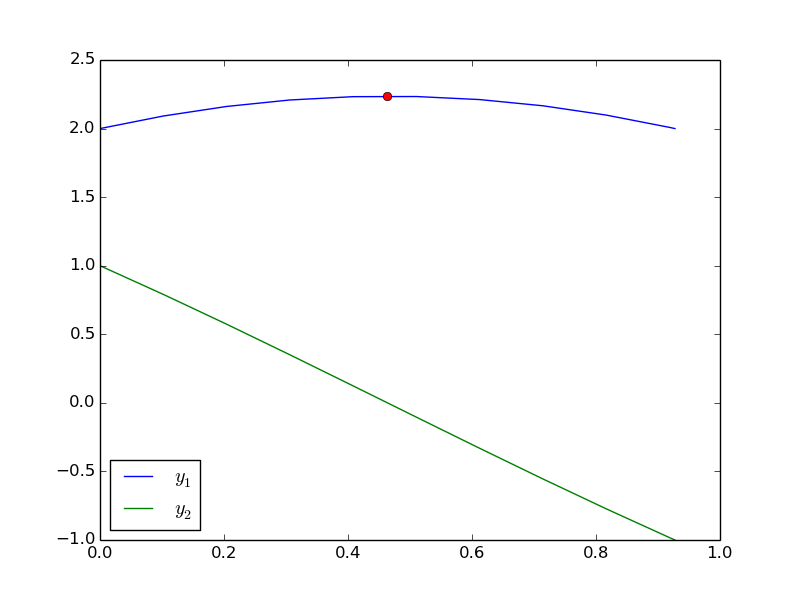
odelay was recently updated to support multiple odes with events. Here is an example. We want the solutions to:

\begin{align} \frac{dy_1}{dx} = y_2 \\ \frac{dy_2}{dx} = -y_1 \end{align}

with initial conditions \(y_1(0) = 2\) and \(y_2(0) = 1\). We want to stop the integration when \(y_2 = -1\) and find out when \(dy_1/dx=0\) and at a maximum.

from pycse import odelay
import matplotlib.pyplot as plt
import numpy as np

def ode(Y,x):
    y1, y2 = Y
    dy1dx = y2
    dy2dx = -y1
    return [dy1dx, dy2dx]

def event1(Y, x):
    y1, y2 = Y
    value = y2 - (-1.0)
    isterminal = True
    direction  = 0
    return value, isterminal, direction

def event2(Y, x):
    dy1dx, dy2dx = ode(Y,x)
    value = dy1dx - 0.0
    isterminal = False
    direction = -1  # derivative is decreasing towards a maximum
    return value, isterminal, direction

Y0 = [2.0, 1.0]
xspan = np.linspace(0, 5)
X, Y, XE, YE, IE = odelay(ode, Y0, xspan, events=[event1, event2])

plt.plot(X, Y)
for ie,xe,ye in zip(IE, XE, YE):
    if ie == 1: #this is the second event
        y1,y2 = ye
        plt.plot(xe, y1, 'ro') 
        
plt.legend(['$y_1$', '$y_2$'], loc='best')
plt.savefig('images/odelay-mult-eq.png')
plt.show()

Here are the plotted results:

Copyright (C) 2013 by John Kitchin. See the License for information about copying.
org-mode source

Discuss on Twitter

Customizing plots after the fact

| categories: plotting | tags:

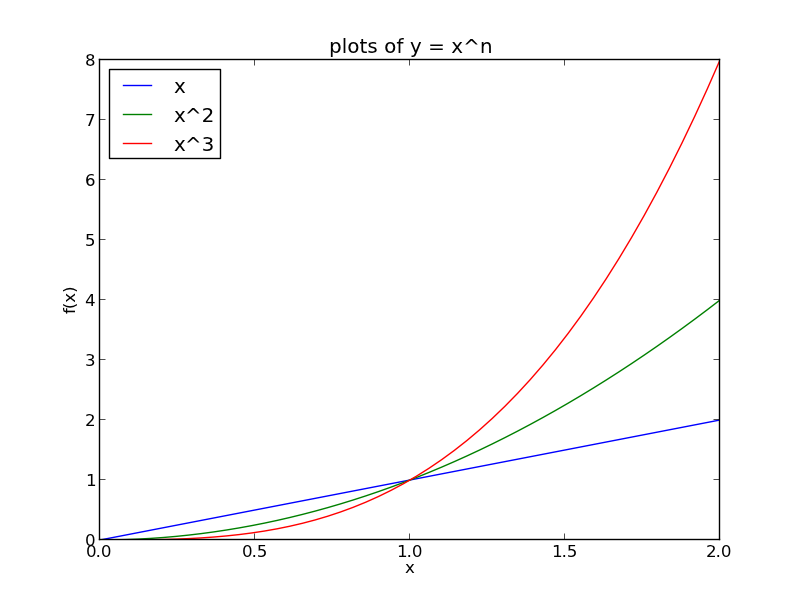
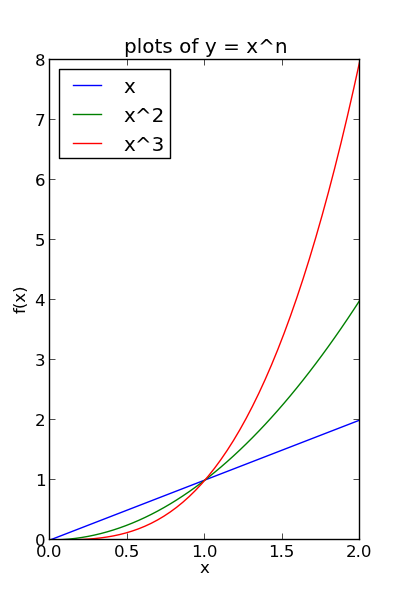
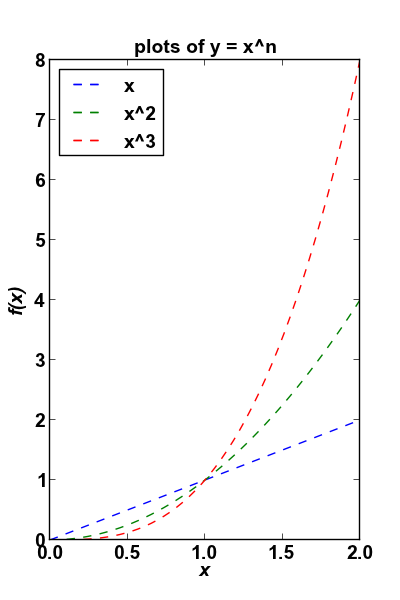
Matlab post Sometimes it is desirable to make a plot that shows the data you want to present, and to customize the details, e.g. font size/type and line thicknesses afterwards. It can be tedious to try to add the customization code to the existing code that makes the plot. Today, we look at a way to do the customization after the plot is created.

import numpy as np
import matplotlib.pyplot as plt

x = np.linspace(0,2)
y1 = x
y2 = x**2
y3 = x**3

plt.plot(x, y1, x, y2, x, y3)
xL = plt.xlabel('x')
yL = plt.ylabel('f(x)')
plt.title('plots of y = x^n')
plt.legend(['x', 'x^2', 'x^3'], loc='best')
plt.savefig('images/after-customization-1.png')

fig = plt.gcf()

plt.setp(fig, 'size_inches', (4, 6))
plt.savefig('images/after-customization-2.png')


# set lines to dashed
from matplotlib.lines import Line2D
for o in fig.findobj(Line2D):
    o.set_linestyle('--')

#set(allaxes,'FontName','Arial','FontWeight','Bold','LineWidth',2,'FontSize',14);

import matplotlib.text as text
for o in fig.findobj(text.Text):
    plt.setp(o, 'fontname','Arial', 'fontweight','bold', 'fontsize', 14)

plt.setp(xL, 'fontstyle', 'italic')
plt.setp(yL, 'fontstyle', 'italic')
plt.savefig('images/after-customization-3.png')
plt.show()

Copyright (C) 2013 by John Kitchin. See the License for information about copying.

org-mode source

Discuss on Twitter
« Previous Page -- Next Page »