A molecule link for org-mode

| categories: chemistry, orgmode, emacs | tags:

Here I am exploring some ideas on compact and functional representations of molecules in org-mode. We will use some functionality from OpenBabel (https://openbabel.org/docs/dev/index.html ) for conversion of formats.

One approach we could use is the SMILES representation. OpenBabel provides tools to convert SMILES to a visualization like this. Let's check out an old favorite: caffeine.

obabel -:"Cn1cnc2n(C)c(=O)n(C)c(=O)c12" -osvg
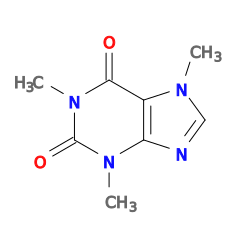
We can imagine the SMILES string is a program, and use an org-mode src block to contain it. It isn't quite a program, as it is more like data, but we can make the block executable if we define how to "execute" the block, and for that we will just have obabel generate the svg representation of the molecule. Here is our execute function. It simply generates the svg to stdout. We can use a :file header to capture it in a file.

(defun org-babel-execute:smiles (body params)
  (shell-command-to-string
   (format "obabel -:\"%s\" -osvg 2> /dev/null" body)))
org-babel-execute:smiles

You can find a smiles block in Appendix of molecules that was adapted from here .

Now, we need a link to refer to our molecule. We want the follow action to jump to our src block which should have a name. We will have it export as the name of the block linked to the molecule definition. This should work fine for definitions in the document. It is not robust to link to molecules in other org-files in the export. That would require those files to be exported too. For now we just define an HTML export.

(defun molecule-jump (name)
  (org-mark-ring-push)
  (org-open-link-from-string (format "[[%s]]" path)))

(defun molecule-export (path desc backend)
  (let ((name (save-window-excursion
                (molecule-jump path)
                (org-element-property :name (org-element-context)))))
    (cond
     ((eq 'html backend)
      (format "<a href=\"#%s\">%s</a>" name name)))))

(org-add-link-type
 "molecule"
 'molecule-jump
 'molecule-export)

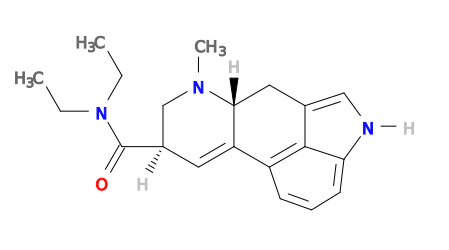
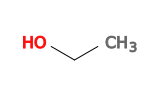
Now we link to LSD and ethanol that allows us to navigate to the definition. We can also refer to a molecule in another file like ethanol. The links are clickable, and should jump to the molecule definition. On export to HTML they will be links to the definition.

Our link provides some limited functionality. We can provide more by making the follow action open a menu for example. Instead, we created a major mode here. It provides a function to convert smiles to CML. It is readily extensible to do other conversions.

One of the reasons we want to have molecules as "data" is so we can find them in our papers. Here is an example of that. We defined two molecules in the Appendix, and we find them here.

(org-element-map (org-element-parse-buffer)
    'src-block
  (lambda (src)
    (when (string= "smiles" (org-element-property :language src))
      (org-element-property :name src))))
LSD ethanol

There is still a lot to do to make this really functional. For example, we might want to use the molecules to write reactions. We might also want more advanced conversion or lookup functions, and more export options. It might be desirable to have tooltips on the links to see the molecules too. No doubt one might want to fine-tune the way the blocks run, so that options could be passed as header args. Maybe I will work on that another day.

1 Appendix of molecules

Here is an example smiles block.

CCN(CC)C(=O)[C@H]1CN(C)[C@@H]2Cc3c[nH]c4cccc(C2=C1)c34
CCO
2 smiles major mode

It would be nice to have a language mode to do special edits of SMILES src blocks. This mode does very little but provide a function that converts SMILES to CML using obabel and open it in a buffer. We redirect stderr to /dev/null to avoid seeing the messages from obabel. We also provide another function that opens a browser to names of the molecule.

(require 'easymenu)

(defun smiles-cml ()
  "Convert the smiles string in the buffer to CML."
  (interactive)
  (let ((smiles (buffer-string)))
    (switch-to-buffer (get-buffer-create "SMILES-CML"))
    (erase-buffer)
    (insert
     (shell-command-to-string
      (format "obabel -:\"%s\" -ocml 2> /dev/null"
              smiles)))
    (goto-char (point-min))
    (xml-mode)))

(defun smiles-names ()
  (interactive)
  (browse-url
   (format "http://cactus.nci.nih.gov/chemical/structure/%s/names"
           (buffer-string))))

(defvar smiles-mode-map
  nil
  "Keymap for smiles-mode.")

;; adapted from http://ergoemacs.org/emacs/elisp_menu_for_major_mode.html
(define-derived-mode smiles-mode fundamental-mode "smiles-mode"
  "Major mode for SMILES code."
  (setq buffer-invisibility-spec '(t)
        mode-name " ☺")

  (when (not smiles-mode-map)
    (setq smiles-mode-map (make-sparse-keymap)))
  (define-key smiles-mode-map (kbd "C-c C-c") 'smiles-cml)
  (define-key smiles-mode-map (kbd "C-c C-n") 'smiles-names)

  (define-key smiles-mode-map [menu-bar] (make-sparse-keymap))

  (let ((menuMap (make-sparse-keymap "SMILES")))
    (define-key smiles-mode-map [menu-bar smiles] (cons "SMILES" menuMap))

    (define-key menuMap [cml]
      '("CML" . smiles-cml))
    (define-key menuMap [names]
      '("Names" . smiles-names))))
smiles-mode

Copyright (C) 2016 by John Kitchin. See the License for information about copying.

org-mode source

Org-mode version = 8.2.10

Discuss on Twitter

Displaying image overlays on image filenames in Emacs

| categories: orgmode, emacs | tags:

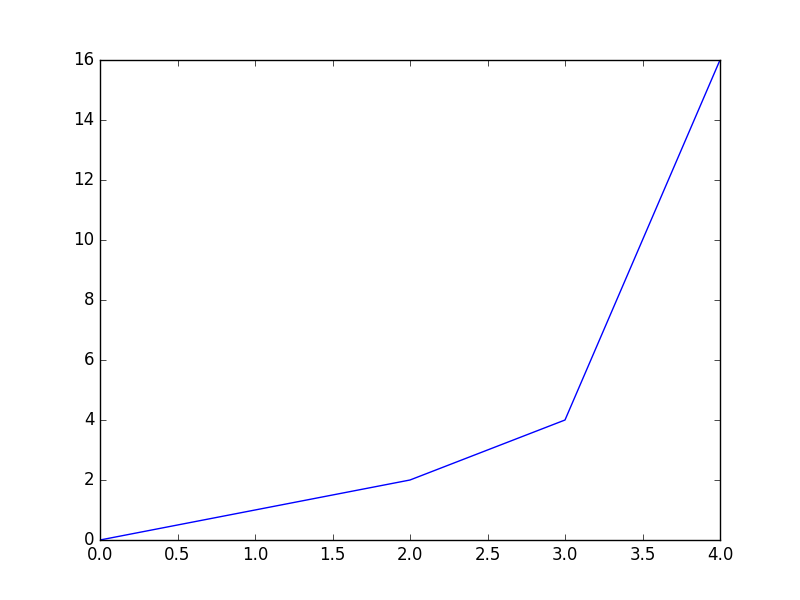
It has always bothered me a little that I have to add a file image after code blocks in org-mode to see the results. That extra work… I also don't like having to explicitly print the figure in the code, since that is the extra work, just in a different place. Today I look into two approaches to this. First, we consider something like tooltips, and second just putting overlays of image files right on the file name. The plus side of this is no extra work. The downside is they won't export; that will still take the extra work, but you needed that for the caption anyway for now.

Here is a video illustrating the code in this post: https://www.youtube.com/watch?v=VuAnwCERM0U

Here is a test.

import matplotlib.pyplot as plt
plt.plot([0, 1, 2, 4, 16])
plt.savefig("test-fig.png")

1 Tooltip approach

Building on our previous approach of graphical tooltips, we try that here to show the images. I have solved the issue of why the images didn't show in the tooltips before; it was related to how Emacs was built. I used to build it with "cocoa" support so it integrates well in OSX. Here, I have build it with gtk3, and the tooltips work with images.

(defvar image-tooltip-re (concat  "\\(?3:'\\|\"\\)\\(?1:.*\\."
                                  (regexp-opt '("png" "PNG" "JPG" "jpeg"
                                                "jpg" "JPEG" "eps" "EPS"))
                                  "\\)\\(?:\\3\\)")
  "Regexp to match image filenames in quotes")

(defun image-tooltip (window object position)
  (save-excursion
    (goto-char position)
    (let (beg end imgfile img s)
      (while (not (looking-at image-tooltip-re))
        (forward-char -1))
      (setq imgfile (match-string-no-properties 1))
      (when (file-exists-p imgfile)
        (setq img (create-image (expand-file-name imgfile)
                                'imagemagick nil :width 200))
        (propertize "Look in the minibuffer"
                    'display img)))))

(font-lock-add-keywords
 nil
 `((,image-tooltip-re
    0 '(face font-lock-keyword-face
             help-echo image-tooltip))))

(font-lock-fontify-buffer)

Now these both have tooltips on them: "test-fig.png" and 'test-fig.png'.

2 The overlay approach

We might alternatively prefer to put overlays in the buffer. Here we make that happen.

(defun next-image-overlay (&optional limit)
  (when (re-search-forward image-tooltip-re limit t)
    (setq beg (match-beginning 0)
          end (match-end 0)
          imgfile (match-string 1))
    (when (file-exists-p imgfile)
      (setq img (create-image (expand-file-name imgfile)
                              'imagemagick nil :width 300))
      (setq ov (make-overlay beg end))
      (overlay-put ov 'display img)
      (overlay-put ov 'face 'default)
      (overlay-put ov 'org-image-overlay t)
      (overlay-put ov 'modification-hooks
                   (list 'org-display-inline-remove-overlay)))))

(font-lock-add-keywords
 nil
 '((next-image-overlay (0  'font-lock-keyword-face t)))
 t)

Here is the example we looked at before.

import matplotlib.pyplot as plt
plt.plot([-0, 1, 2, 4, 16])
plt.savefig("test-fig.png")

You may want to remove those overlays. Here is one way. Note they come back if you don't disable the font-lock keywords though.

(ov-clear 'org-image-overlay)

I know you want to do that so here is:

(font-lock-remove-keywords
 nil
 '((next-image-overlay (0  'font-lock-keyword-face t))))

(ov-clear 'org-image-overlay)

Note you still have to clear the overlays. Font lock doesn't seem to do that for you I think.

Copyright (C) 2016 by John Kitchin. See the License for information about copying.

org-mode source

Org-mode version = 8.2.10

Discuss on Twitter

Org teleport headlines

| categories: orgmode, emacs | tags:

I often want to rearrange org headlines. There are super convenient shortcuts for some things, like Alt-up/down to move up and down, and Alt-left/right to change levels, and shift variants of that when there are nested headlines. There is also refile for some use cases. The case these don't handle for me is when I have a headline at the bottom and I want to move it a distance. To cut down on key strokes, I usually kill the headline, jump to where I want, and paste it.

In lispy, there is a teleport command for this! I am going to adapt this here for reorganizing org-headlines. This version allows you to move headlines around on the visible area. You need another strategy for the candidates to jump to if you want to move a headline off the screen. Note though that ivy is really smart, you can have one file in a split view and it will jump to any headline in any window! I use ivy for the navigation here, but you could also use helm to select headlines, for example. This function puts your headline after the selected headline, unless you use a prefix arg, and then it goes before.

Check out the video to see this in action: https://www.youtube.com/watch?v=Vv-2888rpyc

Note: this code is a little more advanced than what is in the video; I added a numeric prefix to change the headline level.

(defun org-teleport (&optional arg)
  "Teleport the current heading to after a headline selected with avy.
With a prefix ARG move the headline to before the selected
headline. With a numeric prefix, set the headline level. If ARG
is positive, move after, and if negative, move before."
  (interactive "P")
  ;; Kill current headline
  (org-mark-subtree)
  (kill-region (region-beginning) (region-end))
  ;; Jump to a visible headline
  (avy-with avy-goto-line (avy--generic-jump "^\\*+" nil avy-style))
  (cond
   ;; Move before  and change headline level
   ((and (numberp arg) (> 0 arg))
    (save-excursion
      (yank))
    ;; arg is what we want, second is what we have
    ;; if n is positive, we need to demote (increase level)
    (let ((n (- (abs arg) (car (org-heading-components)))))
      (cl-loop for i from 1 to (abs n)
               do
               (if (> 0 n)
                   (org-promote-subtree)
                 (org-demote-subtree)))))
   ;; Move after and change level
   ((and (numberp arg) (< 0 arg))
    (org-mark-subtree)
    (goto-char (region-end))
    (when (eobp) (insert "\n"))
    (save-excursion
      (yank))
    ;; n is what we want and second is what we have
    ;; if n is positive, we need to demote
    (let ((n (- (abs arg) (car (org-heading-components)))))
      (cl-loop for i from 1 to (abs n)
               do
               (if (> 0 n) (org-promote-subtree)
                 (org-demote-subtree)))))

   ;; move to before selection
   ((equal arg '(4))
    (save-excursion
      (yank)))
   ;; move to after selection
   (t
    (org-mark-subtree)
    (goto-char (region-end))
    (when (eobp) (insert "\n"))
    (save-excursion
      (yank))))
  (outline-hide-leaves))
org-teleport

Now we add some new speed commands to help us out. I think we should be able to mark subtrees ("@" is bound to this, but I like "m" better) and kill them with a key stroke, in addition to teleporting them. Since we figured out the nice way to jump to a headline up there, we bind that to "q" which isn't used so far, and maps to a similar concept in lispy. The lowercase "t" is already bound to changing the TODO state, so we use capital "T" for the speed key to teleport. Note it is possible to "compose" the same effect by typing "k" to kill a headline, then "q" to jump somewhere else (or navigate where you want, and then "C-y" to paste it at the new location. Or, "T".

(add-to-list 'org-speed-commands-user (cons "m" 'org-mark-subtree))
(add-to-list 'org-speed-commands-user (cons "k" (lambda ()
                                                  (org-mark-subtree)
                                                  (kill-region
                                                   (region-beginning)
                                                   (region-end)))))
(add-to-list 'org-speed-commands-user
             (cons "q" (lambda ()
                         (avy-with avy-goto-line
                           (avy--generic-jump "^\\*+" nil avy-style)))))

(add-to-list 'org-speed-commands-user (cons "T" 'org-teleport))
"done"
done

Copyright (C) 2016 by John Kitchin. See the License for information about copying.

org-mode source

Org-mode version = 8.2.10

Discuss on Twitter

Getting graphical feedback as tooltips in Emacs

| categories: emacs | tags:

In a continued exploration of Emacs as a user interface today we consider how to look at alternative representations of text. The long term idea is you might have a link to a datafile, say a Raman spectrum. You could click on the link to open it, perhaps even in analysis software. But, it might be nice to have a thumbnail type image that shows the data in graphical form. That might be sufficient for some purposes to identify which file to open.

You need to see the video to see the tooltips actually working in Emacs: https://www.youtube.com/watch?v=uX_hAPb9NOc

To illustrate the idea here we will have E1macs display an image when you mouse over some words that represent fruit, specifically grapes, kiwi and strawberry. We have in this directory images of those fruit:

ls
grapes.png
image-tooltips.org
kiwi.png
strawberry.png

We will use font-lock to add a tooltip to those words that displays the image in the minibuffer. I thought the image would show in the tooltip here, but for some reason it doesn't. Maybe that is ok, since it doesn't clutter the text with big images. Font lock also makes the words stand out a bit so you know there is something there. Here is our tooltip code, and the font-lock-add-keywords that activates it.

(defun image-tooltip (window object position)
  (save-excursion
    (goto-char position)
    (let* ((img-file (format "%s.png" (thing-at-point 'word)))
           (s (propertize "Look in the minbuffer"
                          'display (create-image (expand-file-name img-file)))))
      (message "%s" s))))

(font-lock-add-keywords
 nil
 '(("\\<kiwi\\>\\|\\<grapes\\>\\|strawberry" 0 '(face font-lock-keyword-face
                                                      help-echo image-tooltip))))

Some examples of fruit are the kiwi, the strawberry and grapes. That is a little example to illustrate the concept. Now, imagine something more sophisticated, e.g. a link to a molecular simulation that generates a thumbnail of the atomic geometry, and a summary of the energy. Or a Raman spectrum that shows a thumbnail of the spectrum.

Copyright (C) 2016 by John Kitchin. See the License for information about copying.

org-mode source

Org-mode version = 8.2.10

Discuss on Twitter

New publication in International Journal of Quantum Chemistry

| categories: publication, news | tags:

It is well known that DFT calculations are expensive, which limits the size of the calculations that can be performed, the number of them that can be performed, and their use in simulation methods such as molecular dynamics. Molecular potentials are more suitable for these types of simulations, but they must be parameterized by some means. In this paper, we use a database of DFT calculations to train ReaxFF and a neural network potential. We compare and contrast these potentials with respect to their accuracy, trainability, and speed of calculation with application to properties of Au bulk, cluster and surface properties. There are clear tradeoffs with these two approaches, but both have advantages for different purposes. Congratulations Jake and Mitch! See the paper here: https://doi.org/10.1002/qua.25115 .

@article {boes-2016-neural-reaxf,
  author =       {Boes, Jacob R. and Groenenboom, Mitchell C. and Keith, John A.
                  and Kitchin, John R.},
  title =        {Neural network and ReaxFF comparison for Au properties},
  journal =      {International Journal of Quantum Chemistry},
  issn =         {1097-461X},
  url =          {https://doi.org/10.1002/qua.25115},
  doi =          {10.1002/qua.25115},
  pages =        {n/a--n/a},
  keywords =     {Kohn-Sham density functional theory, neural networks, reactive
                  force fields, potential energy surfaces, machine learning},
  year =         2016,
}

Copyright (C) 2016 by John Kitchin. See the License for information about copying.

org-mode source

Org-mode version = 8.2.10

Discuss on Twitter
« Previous Page -- Next Page »