


Jupyter Lab#
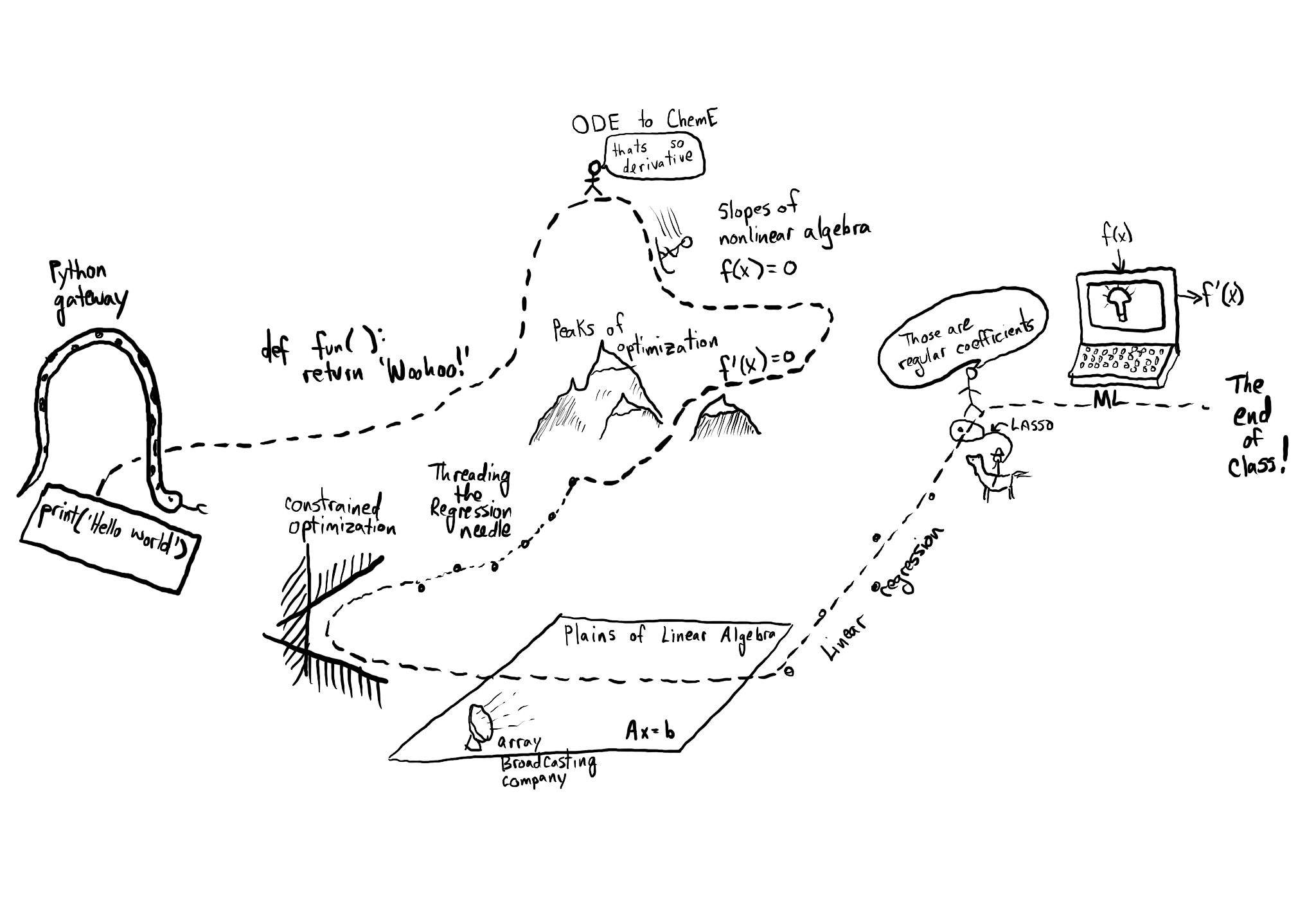
Goals today:
Explore Jupyter Lab
Practice some Markdown
Practice making and using functions
Practice printing formatted strings
There are two kinds of cells in Jupyter notebooks: Markdown and Code.
If you have this cell selected you can either press shift-enter to go to the next cell, or the down arrow key.
Markdown#
#Markdown is a lightweight markup language for text that is meant for humans to read. Select this cell and either double-click on it, or press Enter to see the source.
Double click on this cell to see how to make:
A
Numbered
List
sublists are indented by 4 spaces. Note even though numbered in Markdown, a letter is used when rendered.
You can also make bulleted lists:
A
bulleted
list
Including
different
levels
Text that is bold, italics, crossed-out. Some red text.
Math is written in LaTeX format (https://en.wikibooks.org/wiki/LaTeX/Mathematics). Here are a few examples:
this fraction \(\frac{1}{2}\),
square root \(\sqrt{3}\)
sum \(\sum_{i=1}^{10} t_i\)
A chemical formula: H\(_2\)O
An integral \(\int_a^b f(x)dx\)
You can see more details at https://jupyter-notebook.readthedocs.io/en/stable/examples/Notebook/Working%20With%20Markdown%20Cells.html.
You do not need to learn all of these right now. It will be useful to pay attention to what is in the notes. It will help you express your ideas more clearly.
Try it here. Double click on this cell and add some text.
Headings and subheadings#
It can be helpful to organize your notebook into sections. You can use headings and subheadings to make logical sections. This makes it easier to read. Double click on the headings to see the syntax for making a heading.
Headings are lines that start with one or more #. The number of # determines the level of the heading.
# heading 1
## heading 2
### heading 3
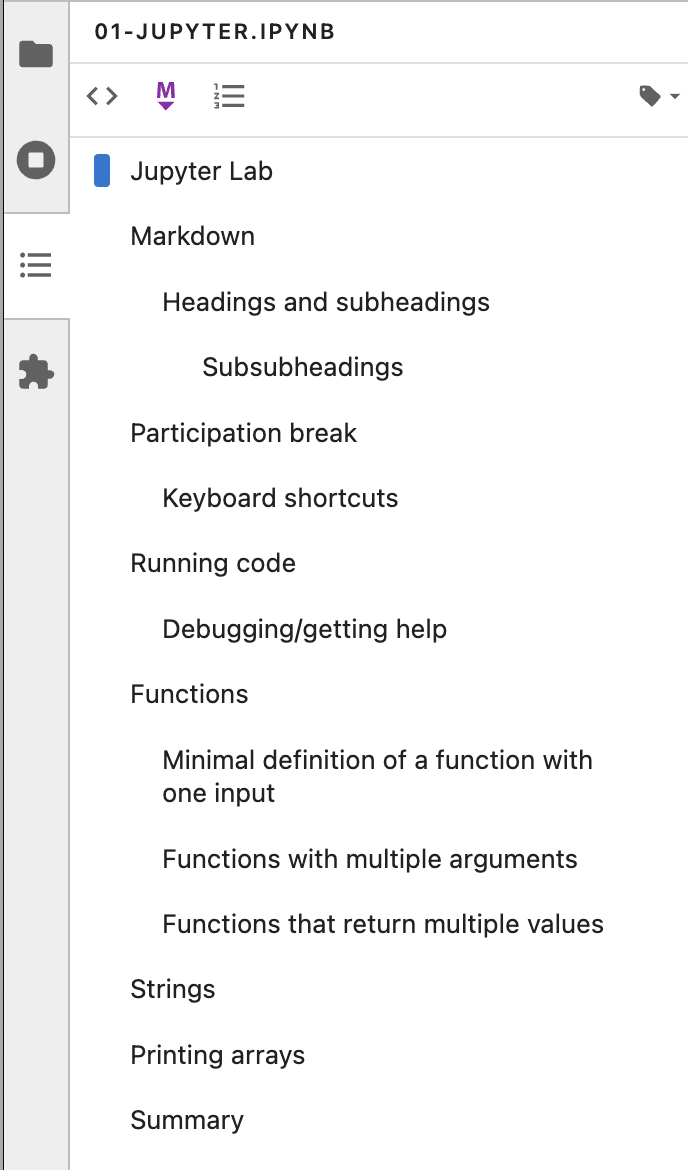
Checkout the Table of Contents on the left.
Subsubheadings#
This heading is ### Subsubheadings.
This video goes over several of these topics.
from IPython.display import YouTubeVideo
YouTubeVideo('Upcs6OCgnow')
This is a whiteboard we can communicate through. You may prefer to have it in another tab:
https://miro.com/app/board/uXjVMrCsQck=/?share_link_id=306221579517
from IPython.display import IFrame


IFrame('https://miro.com/app/board/uXjVMrCsQck=/?share_link_id=306221579517', 1200, 600)
Participation break#
For fun, open this file, run the cell and answer the questions.
Keyboard shortcuts#
You can do most things by clicking in cells and typing, or clicking on the menus. Eventually, you may want to learn some keyboard shortcuts to speed up your work.
From the menus: Settings -> Advanced Settings Editor
You do not need to learn these if you don’t want to; you can always use the mouse and menus.
Running code#
Jupyter notebooks serve two purposes:
To document your work
To run code
It is important to have a basic understanding of how the notebooks work. The browser displays the notebook. The actual computations are run on a server on your computer. When you “run” a code cell, the code is sent to the server, and the server sends the results back to the browser where they are rendered.
When you first open a notebook, nothing has been executed. If you try to execute cells out of order, you will get errors if anything in the cell depends on a previous cell. You should run the cells in order. Here are some ways to do that.
Starting in the first cell, type shift-Enter to run each cell and move to the next one, or in the tab toolbar, click ▸.
In the tab toolbar, click the ▸▸ button.
Occasionally while working, you may want to restart the server and rerun all the cells. Use the Kernel menu: Kernel -> Restart Kernel, or one of the other options. If you run cells out of order, or something seems messed up for some reason, sometimes this fixes it. It also makes sure the output of each cell is consistent with running them in order from scratch.
These cells are used to show what happens when you run things out of order.
a = 5
b = a + 1
b
6
a = 3
Debugging/getting help#
See the Help menu to access general documentation about the notebook and the main libraries we will be using. I would get familiar with their contents, but I would not try to read them all at once.
print(a + 3)
6
While debugging a cell, you should use the run button in the cell or C-Enter to run the cell so that you see the output, but your cursor stays in the cell so you can continue editing it. To go back to editing the cell, just press Enter. It is good practice to run cells whenever you think they should work correctly, because it is easier to debug the last few lines you wrote than a long block of lines. Let’s work an example.
Create a code cell that defines two variables \(x=5\) and \(y=4\), and then compute \(x^2 + y^2\).
# work out the code line by line here
When you are happy with the cell and its output, you can insert a new cell above or below it by typing:
Esc a for above
Esc b for below
Alternatively, in the cell, type shift-enter to execute it one more time, and then move to the next cell (adds a new cell if you are at the end).
There are some other options, you can click the insert cell buttons in the cell menu, or Ctrl-shift-c to get the command window where you can type “insert cell” to select the command.
Jupyter notebooks can act in unexpected ways if you evaluate the cells out of order. It can be very difficult to debug this. When that happens, you are often best off if you restart the kernel and execute the cells from the beginning.
Functions#
Functions are an important part of any programming language. They allow you to reuse code, and make programs more readable.
Minimal definition of a function with one input#
Functions are defined with the def keyword. You specify a name, and the arguments in parentheses, and end the line with a colon. The body of the function must be indented (conventionally by 4 spaces). The function ends when the indentation goes back down one level. You have to define what is returned from the function using the return keyword.
Here is a minimal function definition that simply multiplies the input by two and returns it. #function
# minimal function template
def function_name(optional_arguments):
    "optional docstring"
    body
    return value
def f(x):
    "compute 2*x"
    y = x * 2
    return y
?f
Let’s evaluate our function with a few values:
# Try an integer, float, string, a list, an array (don't forget to import numpy first)
f(3)
6
f(4.0)
8.0
f("CMU")
'CMUCMU'
a = [2, 3, 5.0]
f(a)
[2, 3, 5.0, 2, 3, 5.0]
import numpy as np

b = np.array([2, 3, 5.0])
f(b)
array([ 4., 6., 10.])
help(f)
Help on function f in module __main__:

f(x)
    compute 2*x
# You can have multiple returns in a function, but only one of them returns.
def f1(x):
    if x > 5:
        return True
    else:
        return False


f1(-6)
False
4.11**2 # The extra 0's are from float math
16.892100000000003
16.8921**0.5
4.11
Python uses “duck-typing” to figure out what multiply by two means. Many languages use types to figure this out, e.g. adding two integers is not the same as adding two strings. Python is more flexible, and will allow things to work if they are like each other in the right way.
That can lead to some surprising results when you use data types that were not intended for your function.
Minimal is not always the most informative. You can add an optional documentation string like this.
def f(x):
    """Optional, multiline documentation string
    x should be a number. It is still not an error to use a string or array.
    """
    y = x + 2
    return y
The input argument x is mandatory here, and has no default value.
Try this function with and without arguments here. Add a code cell to do that.
?f
f() # This is an error because x is required
---------------------------------------------------------------------------
TypeError                                 Traceback (most recent call last)
Cell In[22], line 1
----> 1 f()  # This is an error because x is required

TypeError: f() missing 1 required positional argument: 'x'
Functions with multiple arguments#
Suppose you want a function where you can multiply the argument by a user-specified value, that defaults to 2. We can define a function with two arguments, where one is optional with a default value. The optional argument is sometimes called a parameter.
def f(x, a=2):
    # The next string is a one line documentation string. The comment here will
    # not be visible in the help.
    "Return a * x. a is optional with default value of 2."
    y = x * a
    return y
Now, there are several ways to evaluate this function. If you just provide the value of x, then the default value of a will be used.
f(2) # x = 2, since a is not provided, the default a=2 is used
4
Here we use the position of each argument to define the arguments as x=2 and a=3.
f(2, 3) # x=2, a=3
6
We can be very clear about the second value by defining it as a keyword argument:
f(2, a=4)
8
Note, however, that since the first argument has no default value, it is called a positional argument, and so in this case you must always define the first argument as the value of x. This will be an error:
f(a=4, 2) # This is an error because 2 is a positional argument that comes after the keyword argument a
  Cell In[27], line 1
    f(a=4, 2) # This is an error because 2 is a positional argument that comes after the keyword argument a
            ^
SyntaxError: positional argument follows keyword argument
You cannot put positional arguments after keyword arguments. This is ok, since every argument is defined by a keyword. This allows you to specify arguments in the order you want, and when there are lots of arguments makes it easier to remember what each one is for.
f(a=4, x=2)
8
You should be careful about when and where you define variables. In most programming languages, there is a concept of variable scope, that is where is the variable defined, and what value does it have there. Here, a is defined outside the function, so the function inherits the value of a when it is defined. If you change a, you change the function. That can be confusing.
a = 3


def f(x):
    y = a * x
    return y


f(2)
6
a = 2  # changing the global value of a changes the function.
f(2)
4
However, you can “shadow” a variable. In this example, we use an internal definition of a in the function, which replaces the external value of a only inside the function.
a = 2


def f(x):
    a = 3  # This only changes a inside the function
    y = a * x
    return y


f(2)
6
The global value of a is unchanged.
a
2
A similar behavior is observed with arguments. Here the argument a will shadow (redefine) the global value of a, but only inside the function.
def f(x, a):
    y = a * x
    return y


f(2, a=3), a
(6, 2)
The external value of a is unchanged in this case.
a
2
The point here is to be careful with how you define and reuse variable names. In this example, it is more clear that we are using an internal definition of a, simply by prefixing the variable name with an underscore (you can also just give it another name, e.g. b).
a = 2


def f(x, _a=2):
    y = _a * x
    return y


f(2, _a=3)
6
Functions that return multiple values#
A function can return multiple values.
def f(x):
    even = x % 2 == 0
    return x, even  # This returns a tuple
f(43)
(43, False)
6 % 2 # mod operator
0
type(f(2))
tuple
f(3)
(3, False)
If you assign the output of the function to a variable, it will be a tuple.
z = f(3)
z
(3, False)
You can access the elements of the tuple by indexing.
print(z[0])
print(z[1])
3
False
You can also unpack the tuple into variable names. Here there are two elements in the output, and we can assign them to two variable names.
value, even = f(3)
print(value)
print(even)
3
False
def f(x):
    even = x % 2 == 0
    return [x, even]


f(42)
[42, True]
import numpy as np


def f(x):
    even = x % 2 == 0
    return np.array([x, even])


f(4)
array([4, 1])
# Always put a return in the function
def f(x):
    even = x % 2 == 0
    print(x, even)


print(f(3))
z = f(3)
print(z)
3 False
None
3 False
None
True == 1
True
False == 0
True
You can have the function return any kind of data type. If you just use comma-separated return values, you will return a tuple. If you put them in square brackets, you will return a list. In some cases you will want to return an array. When you write functions, you have to decide what they return, and then use them accordingly. When you use functions that others have written (e.g. from a library), you have to read the documentation to see what arguments are required, and what the function returns.
List looks like [a, b, c]. (square brackets)
tuple looks like (a, b, c) (parentheses)
Arrays are different
a_list = [1, 2, 3]
a_tuple = (1, 2, 3)
an_Array = np.array([1, 2, 3])
a_list, a_tuple, an_Array
([1, 2, 3], (1, 2, 3), array([1, 2, 3]))
Strings#
We will use strings a lot to present the output of our work. Suppose Amy has 10 apples, and she gives Bob 3 apples. How many apples does Amy have left?
You could solve it like this:
7 # not good, where did you get 7?
7
10 - 3 # better, but what are 10 and 3?
7
print("Amy has", 10 - 3, "apples left") # better still, now there is context
Amy has 7 apples left
Or, this more clear code.
original_count = 10
count_given = 3
apples_remaining = original_count - count_given
print(f"Amy has {apples_remaining} apples left.")
Amy has 7 apples left.
print(
    f"""Amy had {original_count} apples.
She gave away {count_given}.
She has {apples_remaining} left."""
)
Amy had 10 apples.
She gave away 3.
She has 7 left.
We have used a formatted string here. A formatted string looks like f’…’, and it has elements inside it in curly brackets that are replaced with values from the environment. We can format the values using formatting codes.
The most common use will be formatting floats. If you just print these, you will get a lot of decimal places, more than is commonly needed for engineering problems.
a = 2 / 3
print(a)
0.6666666666666666
We can print this as a float with only three decimal places like this:
print(f"a = {a:1.2f}.")
a = 0.67.
The syntax here for float numbers is {varname:width.decimalsf}. We will usually set the width to 1, and just change the number of decimal places.
There are other ways to format strings in Python, but I will try to only use this method. It is the most readable in my opinion (note: this only works in Python 3. For Python 2, you may have to use one of the other methods.).
You can do some math inside these strings
volume = 10.0  # L
flowrate = 4.0  # L/s

print(f"The residence time is {volume / flowrate:1.2f} seconds.")
The residence time is 2.50 seconds.
You can also call functions in the formatted strings:
def f(x):
    return 1 / x


x0 = 21

print(f"The value of 1 / {x0} to 4 decimal places is {f(x0):1.4f}.")
The value of 1 / 21 to 4 decimal places is 0.0476.
There are many ways to use these, and you should use the method that is most readable.
We will see many examples of this in the class. For complete reference on the formatting codes see https://docs.python.org/3.6/library/string.html#format-specification-mini-language.
Printing arrays#
Arrays are printed in full accuracy by default. This often results in hard to read outputs. Consider this array.
import numpy as np

x = np.linspace(0, 10, 4) + 1e-15  # add tiny number
x
array([1.00000000e-15, 3.33333333e+00, 6.66666667e+00, 1.00000000e+01])
You cannot use formatted strings on arrays like this:
print(f"x = {x:1.3f}")
---------------------------------------------------------------------------
TypeError                                 Traceback (most recent call last)
Cell In[61], line 1
----> 1 print(f"x = {x:1.3f}")

TypeError: unsupported format string passed to numpy.ndarray.__format__
You can use this to print individual elements of the array (you access them with [] indexing). First, we print the first element as a float:
x[0]
np.float64(1e-15)
print(f"x = {x[0]:1.3f}")
x = 0.000
And in exponential (Scientific notation):
print(f"x = {x[0]:1.3e}")
x = 1.000e-15
Instead, you can control how arrays are printed with this line. Note this does not affect the value of the arrays, just how they are printed. The precision argument specifies how many decimal places, and suppress means do not print very small numbers, e.g. 1e-15 is approximately zero, so print it as zero. This effect is temporary and only for what is inside the “with” statement.
with np.printoptions(precision=4, suppress=True):
    print(x)
print(x)
[ 0.      3.3333  6.6667 10.    ]
[1.00000000e-15 3.33333333e+00 6.66666667e+00 1.00000000e+01]
Here we just illustrate that x[0] is not zero as printed. If it was, we would get a ZeroDivisionError error here.
x[0]
np.float64(1e-15)
1 / x[0]
np.float64(999999999999999.9)
1 / 0
---------------------------------------------------------------------------
ZeroDivisionError                         Traceback (most recent call last)
Cell In[68], line 1
----> 1 1 / 0

ZeroDivisionError: division by zero
Summary#
You should get comfortable with:
Creating markdown cells in Jupyter notebooks that express the problem you are solving, and your approach to it.
Creating code cells to evaluate Python expressions
Defining functions with arguments
Printing formatted strings containing your results
Next time: We will start using functions to solve integrals and differential equations.
There are some supplemental videos below:
from IPython.display import YouTubeVideo
YouTubeVideo('IdmOnWyo8Ac')
This video was not made with Jupyter Lab, but the code should work the same way here.
YouTubeVideo('kidVLLHtzbc')
Line and cell magics#
I defined some helpful things for you. You have to load them like this.
We introduce the search magic here.
%run ~/s25-06623/s25.py
---------------------------------------------------------------------------
OSError                                   Traceback (most recent call last)
File /opt/hostedtoolcache/Python/3.11.11/x64/lib/python3.11/site-packages/IPython/core/magics/execution.py:727, in ExecutionMagics.run(self, parameter_s, runner, file_finder)
    726     fpath = arg_lst[0]
--> 727     filename = file_finder(fpath)
    728 except IndexError as e:

File /opt/hostedtoolcache/Python/3.11.11/x64/lib/python3.11/site-packages/IPython/utils/path.py:90, in get_py_filename(name)
     89         return py_name
---> 90 raise IOError("File `%r` not found." % name)

OSError: File `'/home/runner/s25-06623/s25.py'` not found.

The above exception was the direct cause of the following exception:

Exception                                 Traceback (most recent call last)
Cell In[72], line 1
----> 1 get_ipython().run_line_magic('run', '~/s25-06623/s25.py')

File /opt/hostedtoolcache/Python/3.11.11/x64/lib/python3.11/site-packages/IPython/core/interactiveshell.py:2486, in InteractiveShell.run_line_magic(self, magic_name, line, _stack_depth)
   2484     kwargs['local_ns'] = self.get_local_scope(stack_depth)
   2485 with self.builtin_trap:
-> 2486     result = fn(*args, **kwargs)
   2488 # The code below prevents the output from being displayed
   2489 # when using magics with decorator @output_can_be_silenced
   2490 # when the last Python token in the expression is a ';'.
   2491 if getattr(fn, magic.MAGIC_OUTPUT_CAN_BE_SILENCED, False):

File /opt/hostedtoolcache/Python/3.11.11/x64/lib/python3.11/site-packages/IPython/core/magics/execution.py:738, in ExecutionMagics.run(self, parameter_s, runner, file_finder)
    736     if os.name == 'nt' and re.match(r"^'.*'$",fpath):
    737         warn('For Windows, use double quotes to wrap a filename: %run "mypath\\myfile.py"')
--> 738     raise Exception(msg) from e
    739 except TypeError:
    740     if fpath in sys.meta_path:

Exception: File `'/home/runner/s25-06623/s25.py'` not found.
%%search

How do you write a function?